

How to Compress a PDF Without Losing Quality
Quick Navigation
A PDF that's too big to attach to an email is one of the most common small annoyances around documents - and "compress" can sound like it means "make it blurry." It doesn't have to.
Where the size actually comes from
In most oversized PDFs, the bulk of the file size isn't the text - it's embedded images. A scanned document, a PDF exported from a photo, or a form with a logo on every page is usually 90%+ image data. Text and fonts are already efficiently compressed by the time a PDF is created, so real compression tools focus on recompressing those embedded images at a lower quality setting, which is exactly where the size savings come from.
Why quality and file size are a tradeoff, not a bug
Recompressing an image at a lower quality setting genuinely does reduce visual fidelity a little - that's how the size reduction happens, in any tool that does this properly. The goal isn't zero quality loss, it's controlling the tradeoff: enough compression to hit a size you need, at a quality level you're comfortable with for that particular document.
Tip: if you're not sure how much reduction you need, start with the lightest quality setting and check the result - you can always compress again at a heavier setting, but you can't get quality back once you've thrown it away.
Offline processing vs. online cloud converters
Most free "compress PDF" tools online work by uploading your file to someone else's server, processing it there, and sending it back. That's fine for a public flyer - less fine for a signed contract, a medical form, or anything with a name and address on it.
| PDF Handy (offline) | Online cloud converters | |
|---|---|---|
| Privacy | Never leaves your device | Uploaded to a third-party server |
| Internet dependency | Works with no connection | Requires an upload and download |
| Speed | Instant, limited only by your phone | Limited by upload speed and server queue |
| File size limits | Up to 50MB free, unlimited with Pro | Often capped, or paywalled past a few MB |
Before you upload a document to any online converter, consider what's actually in it - a bank statement, an ID scan, or a client contract is now sitting on a server you don't control, even if the site promises to delete it later.
How to compress a PDF on Android
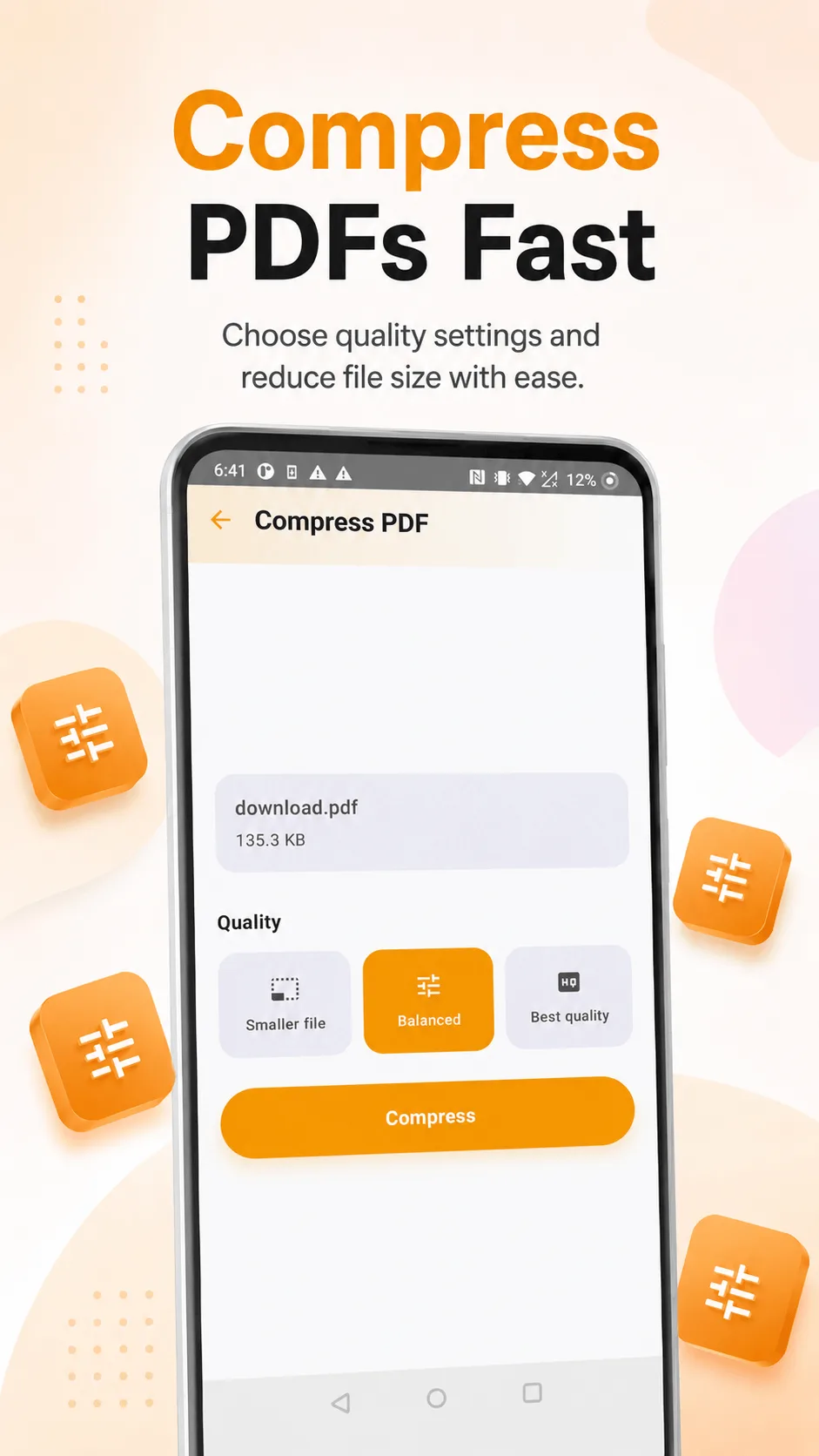
- Open PDF Handy and tap Compress PDF.
- Pick the PDF you want to shrink.
- Choose a quality level - a lighter touch keeps images closer to original quality with a smaller size reduction; a heavier one shrinks the file more at the cost of more visible compression.
- Tap Compress to get your smaller file, ready to share or save.
When compression won't help much
If a PDF is already mostly text with few or no images (a Word doc exported to PDF, for example), compressing it won't shrink it by much - there's simply not much image data to recompress. That's expected, not a sign anything's broken.
Where PDF Handy fits
PDF Handy compresses PDFs up to 50MB on the free tier, with your choice of three quality levels, entirely offline - your document never leaves your device to get smaller. Pro removes the size cap.
Get PDF Handy
Every PDF tool you need, 100% offline. Free to download, no account required.
- 100% offline
- No account needed
- Free to start

FAQ
Will compressing make my PDF's text blurry? No - compression targets embedded images, not text. Text stays crisp regardless of the quality level you choose, since it's rendered from actual characters, not a picture of characters.
How much smaller will my file actually get? It depends entirely on how image-heavy the source PDF is - a scanned document can shrink dramatically, while a text-only PDF may barely change. Try the lightest setting first if you're not sure how much reduction you need.