

How to Merge PDF Files on Android (No Computer Needed)
Quick Navigation
Combining a few PDFs into one document used to mean opening a computer, or worse, uploading your files to some website you've never heard of just to get one merged file back. Neither is necessary on Android anymore.
Why merge on your phone instead of a computer
If the files are already on your phone - photos scanned earlier, documents someone emailed you, forms you filled out - moving them to a computer just to combine them is a detour you don't need. Merging locally also means your documents never leave your device, which matters if they contain anything sensitive (contracts, ID scans, medical forms).
How to merge PDFs on Android
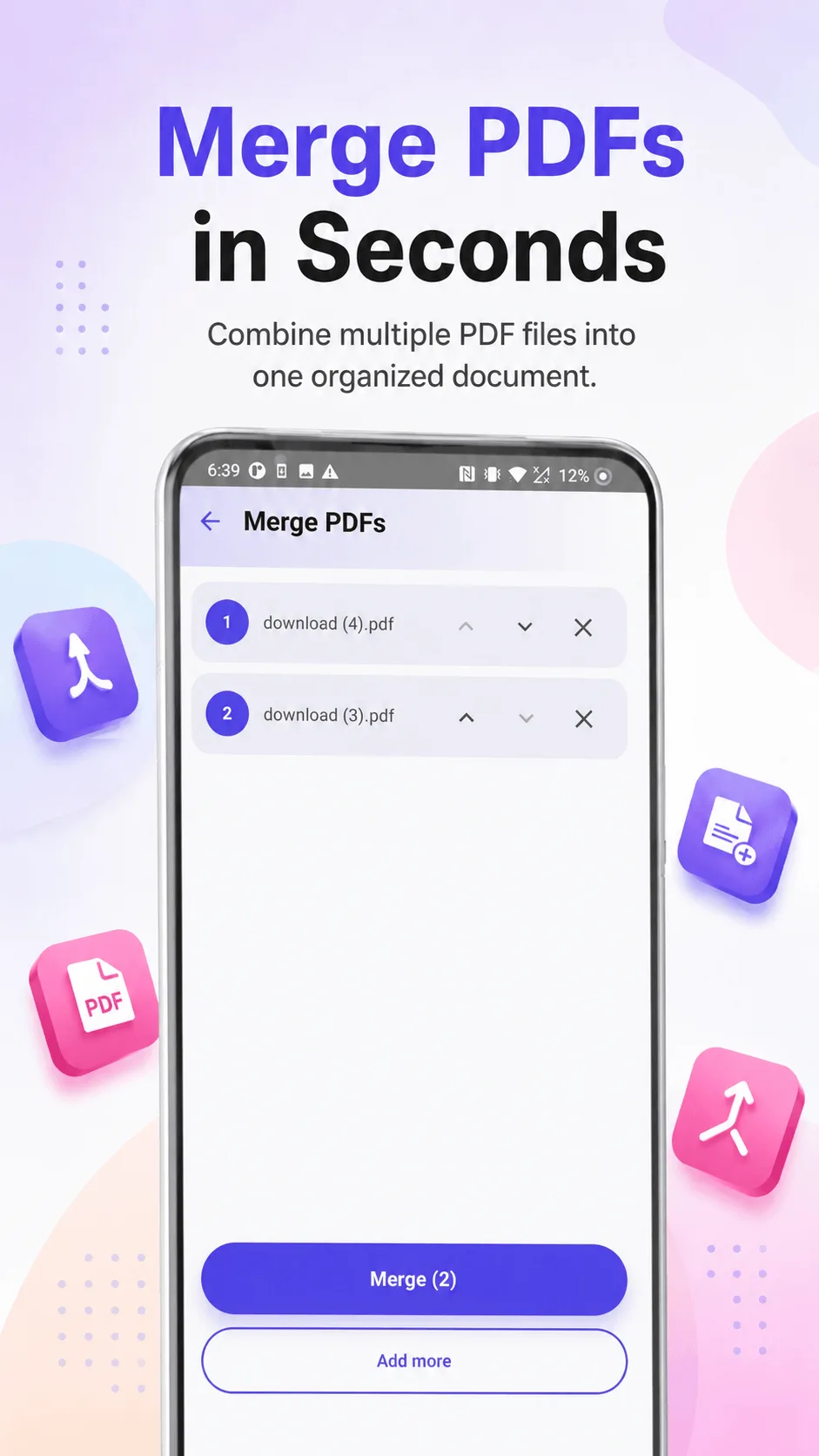
- Open PDF Handy and tap Merge PDFs.
- Pick the files you want to combine - select as many as you need from your device.
- Drag to reorder them into the sequence you want the final document to read in.
- Tap Merge - you get one combined PDF, ready to share or save.
The whole thing runs on your device. Nothing is uploaded to a server at any point.
Does merging keep the original quality?
Yes - a proper merge copies each page's actual content (text, images, formatting) into the new file rather than flattening pages into images. Text stays selectable and searchable in the merged result, exactly as it was in the source files.
Tip: get the order right before you tap Merge - drag any file into position as many times as you need. There's no in-between "undo," so a quick check of the sequence first saves a re-do.
What if the files are in a different order than I want?
Reorder them before merging - once you've picked your files, drag any of them into the sequence you want. There's no need to re-pick files if you get the order wrong the first time; just drag again.
Where PDF Handy fits
PDF Handy merges up to 10 PDFs at once on the free tier - Pro removes that limit entirely, along with every other tool's cap, and adds password protection. Everything runs offline: no account, no upload, no server round-trip.
Get PDF Handy
Every PDF tool you need, 100% offline. Free to download, no account required.
- 100% offline
- No account needed
- Free to start

FAQ
Is there a limit to how many PDFs I can merge for free? Free covers up to 10 files per merge, which is generous for everyday use - combining a scanned form with a cover letter, or several chapters into one document. Pro lifts that limit entirely.
Will merging change my document's formatting? No - each source PDF's pages are copied in as-is, keeping their original layout, fonts, and any selectable text intact.