

How to Turn Photos Into a PDF on Android
Quick Navigation
Whether it's a stack of receipts, pages of a form you photographed instead of scanned, or a few whiteboard photos from a meeting, turning a handful of images into one PDF is one of the most common things people need a phone to do - and it doesn't require a separate scanner app or a trip to a computer.
Why a PDF instead of just sending the photos
A PDF keeps everything in one file, in a fixed order, instead of a scattered set of image attachments the recipient has to open one by one. It's also the expected format for most official submissions - many forms explicitly ask for a PDF, not a folder of JPGs.
How to convert photos to a PDF on Android
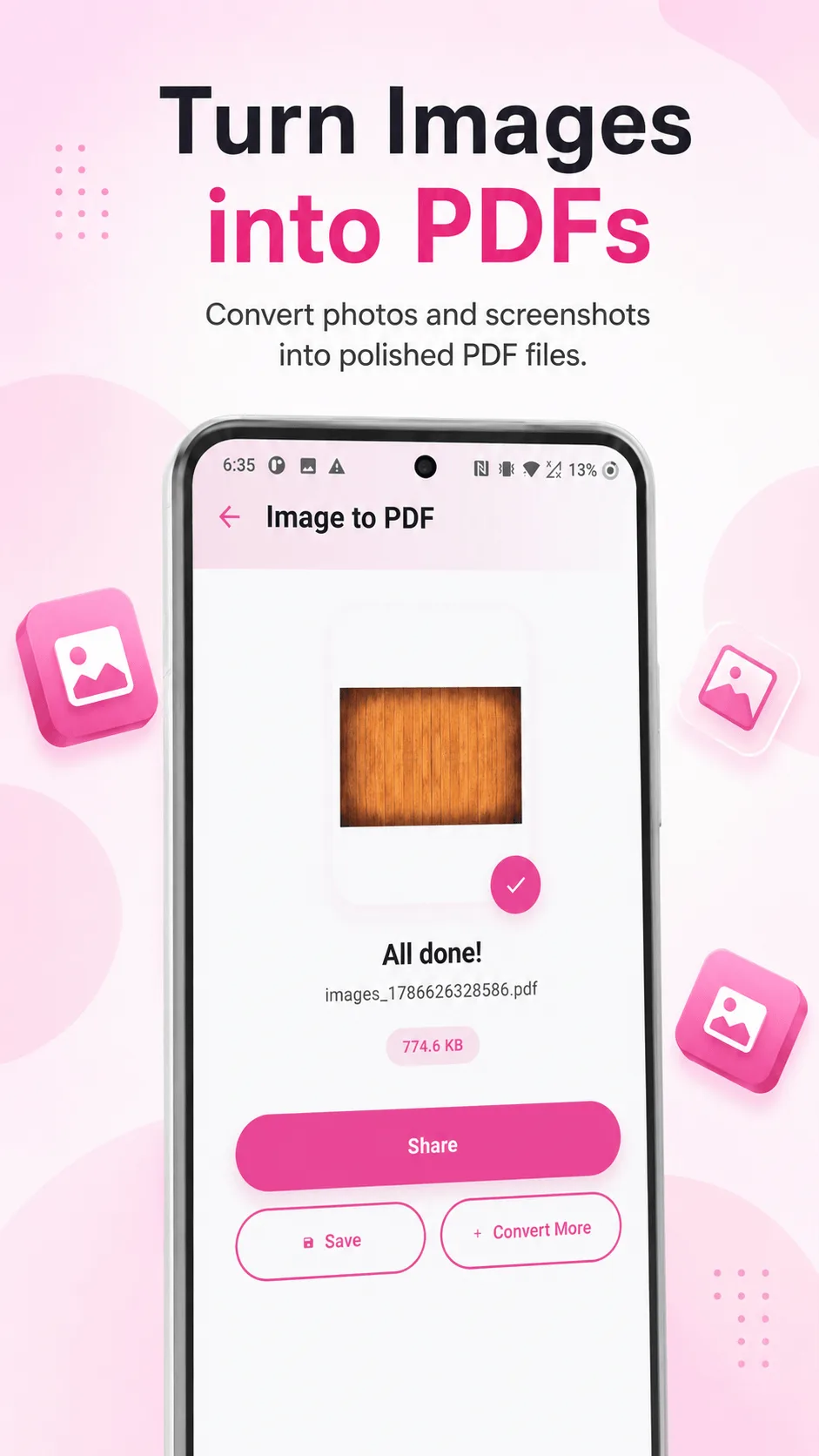
- Open PDF Handy and tap Image to PDF.
- Pick the photos you want to include - select as many as you need from your gallery.
- Put them in the order you want the final document to read in.
- Tap Create - you get one PDF containing every photo as a page, ready to share or save.
Getting the order right before you convert
Order the photos before creating the PDF rather than after - once they're combined you'd need to redo the whole thing to fix a swapped page, so it's worth double-checking the sequence (especially for multi-page forms) before tapping create.
A tip for photographing pages cleanly
Tip: flat lighting and a straight-on angle matter more than camera quality for readability - a photo taken at an angle, or with a strong shadow across the page, is the most common cause of a hard-to-read result.
If you're regularly photographing documents rather than converting existing photos, a dedicated document scanner (which corrects angle and lighting automatically) is worth using instead:
| Image to PDF | Scan Document | |
|---|---|---|
| Best for | Photos you already have | Photographing a page right now |
| Edge detection | No | Automatic |
| Perspective correction | No | Automatic |
Where PDF Handy fits
PDF Handy converts up to 20 photos into a PDF at once on the free tier, entirely offline. If you're photographing documents specifically (not converting photos you already have), its Scan Document tool automatically detects page edges and corrects the perspective - genuinely different from just photographing a page with the camera app.
Get PDF Handy
Every PDF tool you need, 100% offline. Free to download, no account required.
- 100% offline
- No account needed
- Free to start

FAQ
Is there a limit to how many photos I can combine? Free covers up to 20 photos per PDF - enough for most receipts, forms, or short documents. Pro removes that limit.
Does converting photos to PDF reduce their quality? Photos are embedded into the PDF at their original resolution - if the resulting file is too large to share, PDF Handy's separate Compress tool can shrink it afterward.