

How to Split a PDF and Extract Just the Pages You Need
Quick Navigation
Sometimes you don't need the whole PDF - just page 3 of a 40-page contract, or the two pages of a report someone actually asked for. Splitting a PDF pulls exactly those pages into a new file, without sending (or reading through) the rest.
Why extract pages instead of sending the whole PDF
A 40-page document sent when only one page matters is a worse experience for whoever receives it - they have to find the relevant page themselves, and it makes the file bigger to store or forward than it needs to be. Extracting just the pages that matter produces a smaller, more precise file that says exactly what you meant to send.
How to split a PDF on Android
- Open PDF Handy and tap Split PDF.
- Pick the PDF you want to extract pages from.
- Every page shows as a thumbnail - tap the ones you want, or use Select all / Select none to start from either end.
- Tap Extract - you get a new PDF containing only the pages you selected.
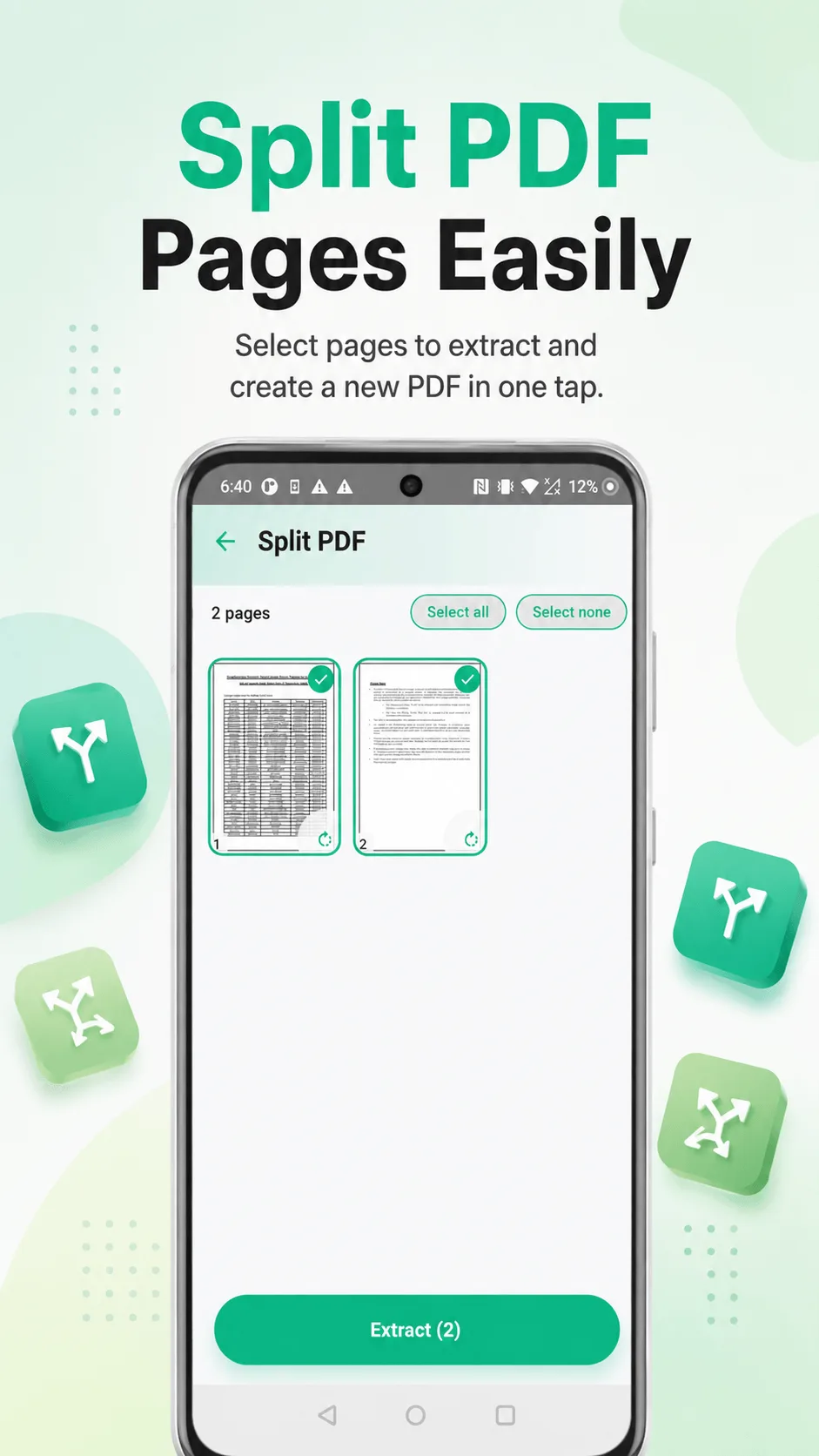
Selecting exactly the pages you need
Tip: pages don't need to be consecutive - pick page 2 and page 15 and skip everything between them. Whatever you select comes out in the original document's page order, not the order you tapped them in. If a page was scanned sideways, you can rotate it right from the same grid before extracting.
The original PDF is never modified - splitting always creates a new file, so the source document stays exactly as it was if you need it again later.
Where PDF Handy fits
PDF Handy splits PDFs up to 50 pages on the free tier - Pro removes that limit entirely, along with every other tool's cap. Extraction happens entirely on your device, so the document never leaves your phone to get split.
Get PDF Handy
Every PDF tool you need, 100% offline. Free to download, no account required.
- 100% offline
- No account needed
- Free to start

FAQ
Does splitting reduce the quality of the extracted pages? No - each extracted page is a direct copy of the original page's content (text, images, formatting), not a re-render. Selectable text stays selectable.
Can I extract non-consecutive pages into one file? Yes - select any combination of pages you want, anywhere in the document, and they're combined into a single new PDF, kept in their original document order.