

PDF to JPG: How to Convert PDF Pages to Images on Android
Quick Navigation
Sometimes what you actually need isn't a PDF at all - it's an image. Posting a page to social media, pasting one into a chat that doesn't preview PDFs well, or attaching a single page somewhere that only accepts pictures all call for a JPG, not the whole document.
Why convert to images instead of just sending the PDF
Not every app or platform handles PDFs gracefully - some chat apps show a generic file icon instead of a preview, and most social platforms don't accept PDFs as a post attachment at all. An image, on the other hand, previews and pastes everywhere. Converting each page to its own JPG turns a PDF into something that behaves like any other photo.
How to convert PDF to JPG on Android
- Open PDF Handy and tap PDF to Image.
- Pick the PDF you want to convert.
- Tap Export as Images - every page in the document becomes its own JPG.
- Review the page grid, then Share or Save to folder.
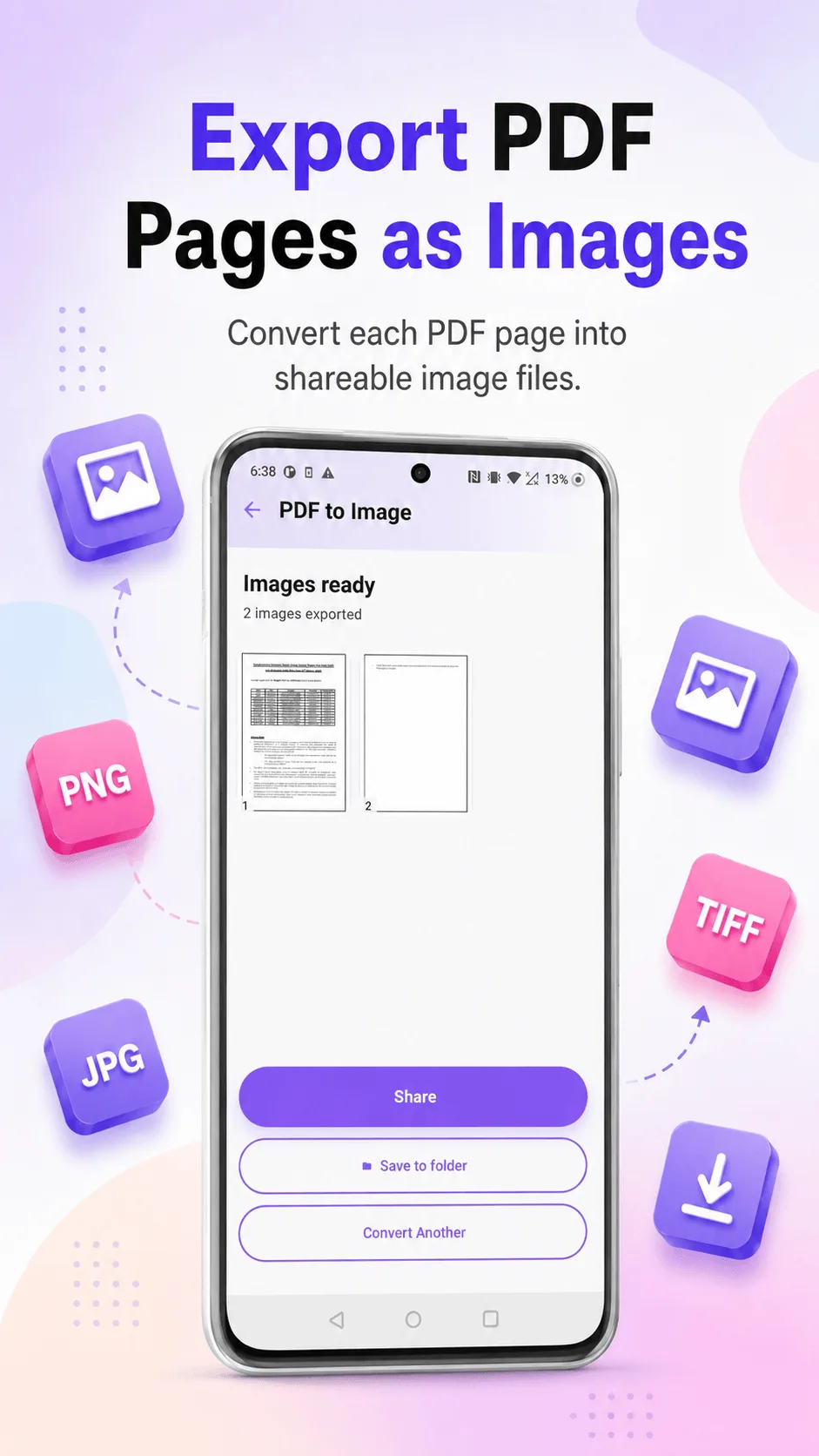
Tip: the whole document converts at once - every page in the source PDF becomes an image, not just the ones you're most interested in. If you only need a couple of specific pages, split those pages out first, then convert the smaller result.
Where PDF Handy fits
PDF Handy converts PDFs up to 50 pages at once on the free tier, entirely offline - each page is exported as a JPG, ready to share individually or all at once via your phone's normal share sheet.
Get PDF Handy
Every PDF tool you need, 100% offline. Free to download, no account required.
- 100% offline
- No account needed
- Free to start

FAQ
Does converting to JPG reduce image quality? Each page is rendered at a resolution suited for sharing and viewing on a screen - if you need the absolute highest fidelity for print, keep working from the original PDF instead.
Can I convert just one page instead of the whole document? Not directly - PDF to Image converts every page. To get just one or two pages as images, split those pages into their own PDF first, then convert that smaller file.