

How to Scan a Document with Your Phone (No Extra Scanner App Needed)
Quick Navigation
A stack of paper - a form, a receipt, a signed page someone handed you - doesn't need a dedicated scanner to become a clean, shareable PDF. Your phone's camera is enough, as long as the app doing the capturing corrects the angle and lighting for you.
Why not just take a photo
A plain photo of a document usually comes out skewed (shot at a slight angle, not perfectly square-on) and includes whatever's around the page - the desk, your hand, the edge of a folder. A real document scanner detects the page's actual edges, crops to just that rectangle, and corrects the perspective so it reads like a flat, straight scan instead of a photo of a piece of paper.
How to scan a document on Android
- Open PDF Handy and tap Scan Document.
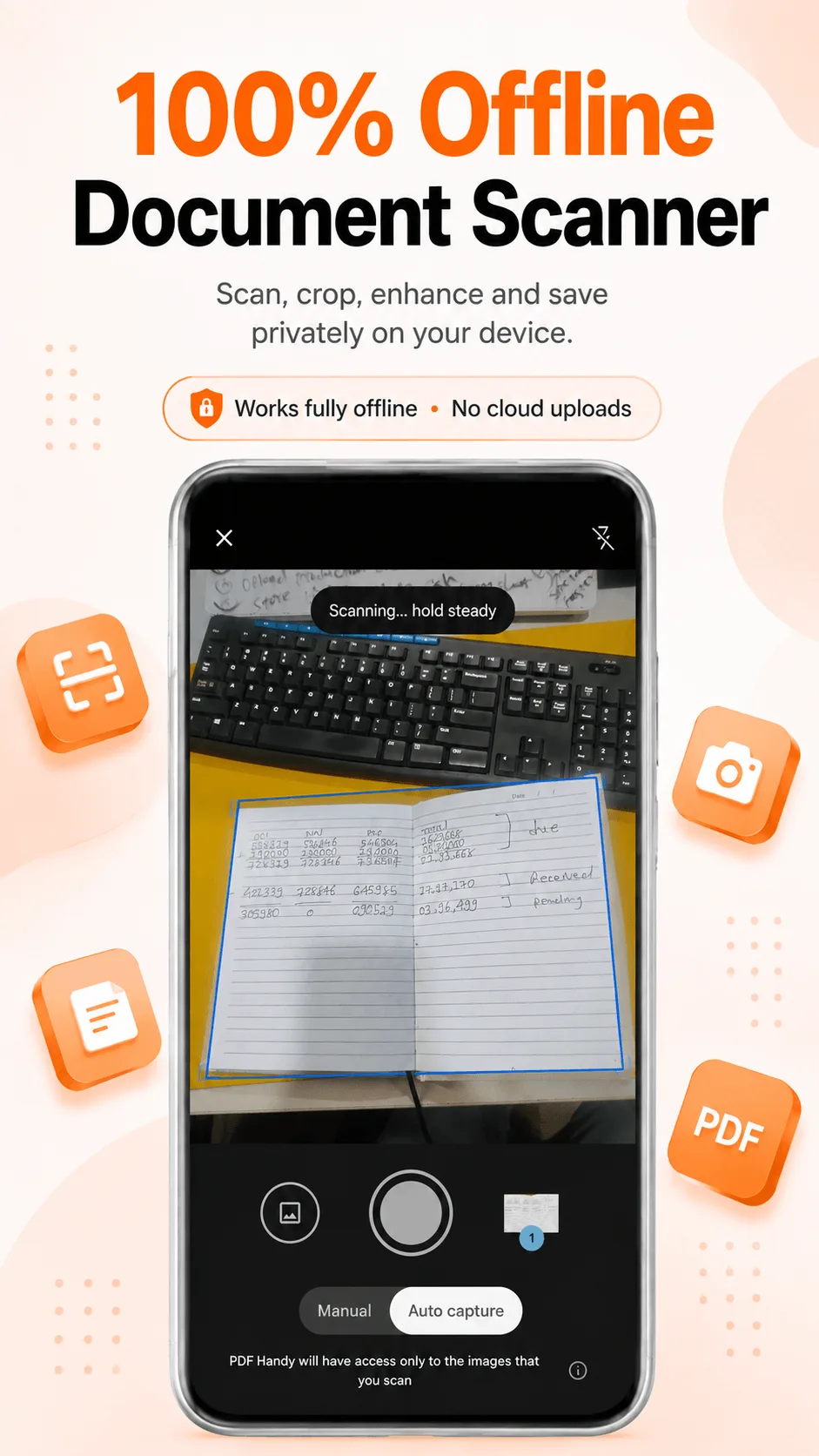
- Tap Start Scanning - the scanner opens and automatically detects the page's edges as you point your camera at it.
- Capture each page - it's cropped and perspective-corrected automatically. Add more pages for a multi-page document.
- Finish up, and you get a single clean PDF with every page included.
When a photo is good enough instead
| Scan Document | Image to PDF | |
|---|---|---|
| Best for | Photographing a page right now | Photos you already have |
| Edge detection | Automatic | No |
| Perspective correction | Automatic | No |
If you're converting photos you already took (or received), see our guide to turning photos into a PDF instead - Scan Document is specifically for capturing a physical page right now.
Tip: even with automatic correction, even lighting still helps - a hard shadow cutting across the page can occasionally confuse edge detection on a low-contrast surface (white paper on a white desk, for example).
Where PDF Handy fits
PDF Handy's Scan Document tool captures up to 15 pages per scan on the free tier, entirely offline - nothing about the document is ever uploaded anywhere, including during the capture itself.
Get PDF Handy
Every PDF tool you need, 100% offline. Free to download, no account required.
- 100% offline
- No account needed
- Free to start

FAQ
Does scanning need an internet connection? No - capture, edge detection, and PDF export all happen on your device. No page is ever sent anywhere to be processed.
Can I add more pages after I've already scanned some? Yes - keep capturing additional pages before finishing, and they're all combined into the same PDF in the order you captured them.